
Using the Nvidia G-Assist, now you can talk to your computer to control various PC features, it uses a small LM (Language Model) that sits locally on your computer and will generate responses in real time as well as control your PC hardware functions (System Fans, Lights, Core GPU controls etc), it is being built modularly so you can even built and use your own custom plugin which you can build with python using Chatgpt.
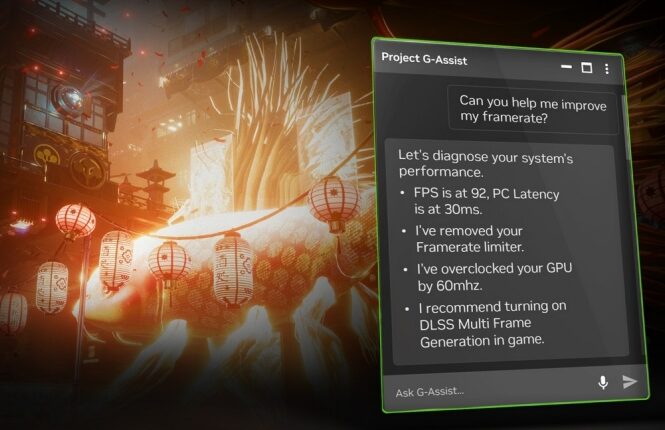
How to Download NVIDIA G-Assist
To use G-assist, Download the NVIDIA app from official Nvidia page, you must have GeForce 572.83 Driver and 12GB VRAM or higher graphics card (GeForce RTX 30, 40, and 50 Series Desktop GPUs)
List of available Voice/Text commands G-Assist:
| Invoking Function | Voice/Text Command |
| Nvidia GeForce Knowledge Base/Features | “How does Frame Generation work?” |
| Optimize Graphics | “Optimize my graphics for Gamename” |
| Preference-Based Optimization | “Optimize Gamename for higher performance over quality.” |
| Launch Game | “Launch The game” |
| GPU Overclocking (Manual) | “Overclock my GPU by 60 MHz.” |
| Save ShadowPlay Clip | “Save a shadowplay clip” |
| Start/Stop Recording | “Start recording my gameplay.” |
| Show/Hide Performance Overlay | “Hide the performance overlay.” |
| Driver Update | “Update my GeForce driver” |
| Latest Driver Check | “Am I running the latest GPU driver?” |
| Peripheral/Room Lighting (see Plugin System Requirements) | “Set my keyboard lights to green.”“Set my room lights to yellow” |
| Set Fan Profile (see Plugin System Requirements) | “Set my fans to silent mode” |
| CPU Utilization % | “What’s my CPU utilization?” |
| GPU Utilization % | “What’s my GPU utilization?” |
| GPU Clock Speed | “What’s my GPU clock speed right now?” |
| GPU Power Usage | “How much power is my GPU using?” |
| Average FPS | “What’s my average FPS in this game?” |
| Average PC Latency | “What’s my PC latency?” |
| Performance per Watt | “What is my performance per watt?” |
| Overclock Revert | “Remove my GPU overclock” |
| Framerate Analyzer | “Analyze my performance” |
| Responsiveness Analyzer | “Analyze my responsiveness” |
| Power Analyzer | “Analyze my power consumption” |
| Set Refresh Rate | “Set my monitor to 144Hz.” |
| Current Refresh Rate | “What’s my current refresh rate?” |
| Refresh Rate Max | “What’s the highest refresh rate my monitor supports?” |
| Detect FRL | “Is there a frame rate limit right now?” |
| Set FRL | “Set a Frame Rate Limit to 100.” |
| FRL Revert | “Turn off my frame rate limiter.” |
| Power Efficiency Mode | “Set my GPU to power efficiency mode” |
| Revert Power Efficiency Mode | “Undo my power efficiency settings.” |
| Graphing – 2-variable | “Graph my CPU and GPU usage” |
| Graphing – CPU Utilization | “Graph my CPU usage” |
| Graphing – GPU Utilization | “Graph my GPU utilization” |
| Graphing – GPU Clock Speed | “Plot my GPU clock speed” |
| Graphing – GPU Power | “Show me a power usage graph” |
| Graphing – Average FPS | “Graph my frame rate” |
| Graphing – 1%L | “Graph my 1% Low FPS” |
| Graphing – PCL | “Plot my latency” |
| Graphing – PPW | “Graph my performance per watt” |
| Graphing – GPU Fan Speed | “Show me a graph of my GPU fan speed” |
| Set Specified Display Resolution | “Set my display resolution to 1080p.” |
| Set Resolution to Max | “Go to the maximum resolution.” |
| GPU Temperature | “What’s my GPU temperature right now?” |
| GPU Operating Voltage | “How many volts is my GPU drawing?” |
| 1%L | “What’s my 1% low frame rate right now?” |
| Check Undervolt State | “Is my GPU undervolted ?” |
| Stutter Analyzer | “Help me analyze stutter” |
| GPU Model Info | “Which GPU am I using?” |
| GPU Driver Version Info | “Which NVIDIA driver do I have installed?” |
| GPU Total VRAM Info | “How much VRAM does my GPU have?” |
| Monitor Model Info | “What model is my monitor?” |
| Current Display Resolution | “What resolution am I running now?” |
| Display Resolution Max | “What’s my monitor’s max resolution?” |
| Storage Space Occupied | “How much disk space is in use?” |
| Storage Space Free | “How much free storage do I have?” |
| RAM Amount Installed | “How much memory do I have?” |
| RAM Amount Free | “How much free memory do I have?” |
| Detect G-SYNC | “Is G-SYNC enabled?” |
| Set G-SYNC | “Turn on G-SYNC.” |
| Detect V-Sync | “Is V-Sync on right now?” |
| Set V-Sync | “Disable V-Sync” |
| List Process CPU/GPU Usage | “Which processes are using the most GPU right now?” |
| CPU Clock Speed | “What’s my CPU clock speed right now?” |
| Display Size Info (inches) | “What’s the size of my display in inches?” |
| Virtual RAM Total Available Info | “How much virtual memory do I have?” |
| Virtual RAM Free Info | “How much free virtual memory do I have?” |
| GPU Info – Number of GPUs | “How many GPUs does my PC have?” |
| GPU Info – VBIOS Version | “What’s my GPU’s VBIOS version?” |
| Display Info – Number of Displays | “How many monitors are connected right now?” |
| Disk Drive Info – Number of Drives | “How many disk drives are installed on my PC?” |
| OS Info – Get Version | “Which operating system am I running?” |
| CPU Info – Cache Size | “How large is my CPU’s cache memory?” |
| Invoke Plugin | “Hey Google, how’s it going?” “/Google, how do I make pizza?” |
| Exit Plugin | “Return”“/G-Assist, tell me about my system” |
G-Assist Supported Currently available Plugins
- Gemini AI Integration
- Logitech Peripheral Lighting
- Corsair Peripheral Lighting
- Nanoleaf Room Lighting
- Twitch Integration
- Spotify Music Player
Download G-Assist for local development of plugins


